Practical spreadsheets and data
CSV dates are wrong in Excel: fix swapped days and months
Keep the original date text, confirm its day/month order, and import with an explicit locale. Check numeric year, month and day before changing the display format.
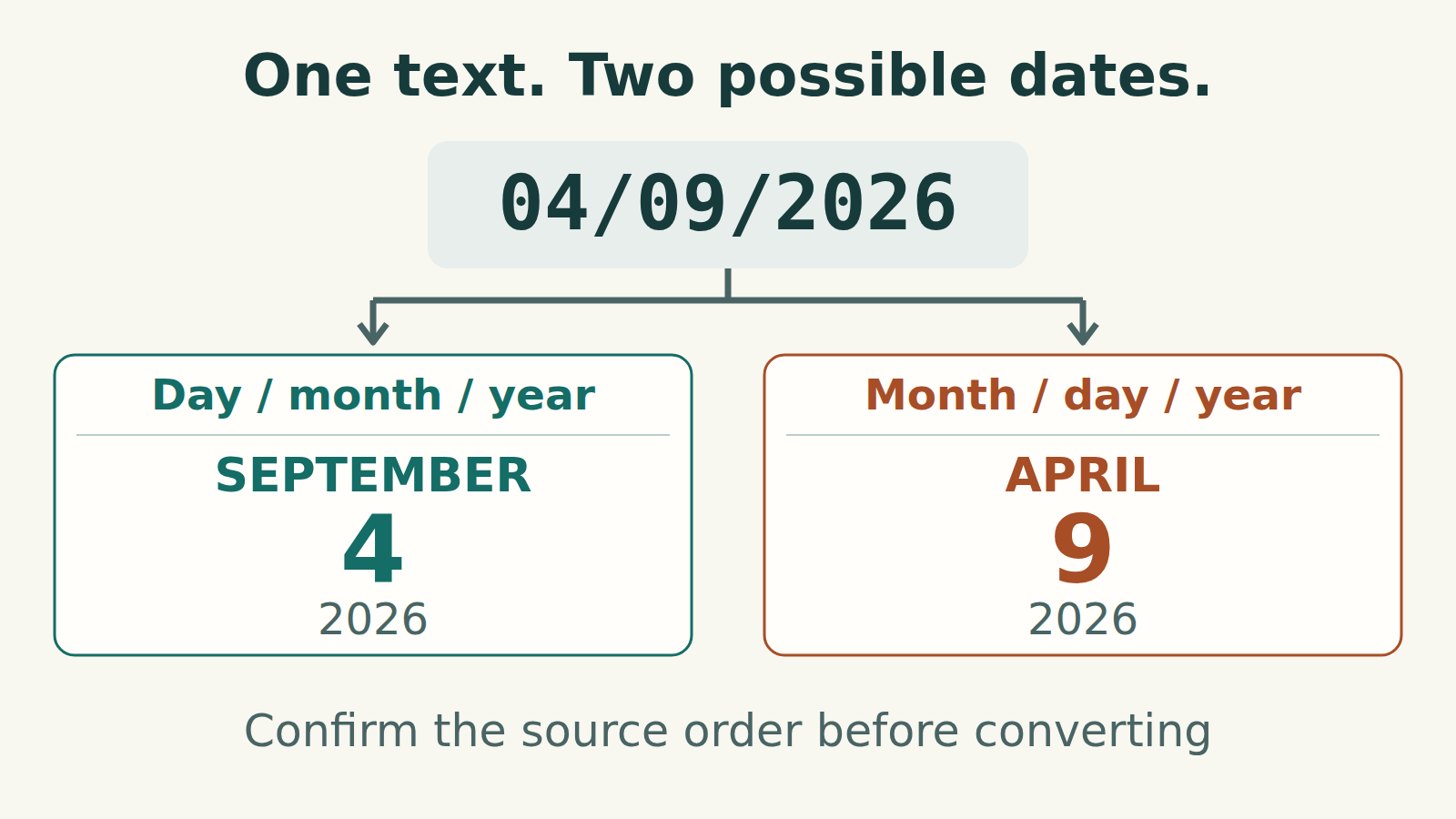
Start with the date in the source, not its appearance
The steps below use desktop Excel for Microsoft 365 or Excel 2024 on Windows and Power Query. They cover calendar dates with a four-digit year, without times or time zones. Menu labels can vary by build.
Keep the original CSV unchanged. Open a copy in a plain-text editor and find one record whose date you can confirm from the source system. For a date written 04/09/2026, you need to know whether the exporter meant 4 September or April 9. The characters alone cannot settle that question.
Choose the right fix
- Correct day, month and year, but an unfamiliar display: change the cell format after checking the value.
- Day and month are wrong, or part of the column remains text: import the original CSV again, keeping the date text intact until you select its locale.
- Unknown source order or several conventions mixed in one column: keep the values as Text and confirm the convention with the exporter before converting.
Try a three-record check
Save this original example as coru-dates-dmy.csv in UTF-8. Its declared source convention is day/month/year. It has two columns and three data records.
D-41 and D-43 can look like valid dates in either order. D-42 includes a day greater than 12, which helps expose a month-first interpretation. It does not prove that every row in an unrelated export follows the same convention.
coru-dates-dmy.csv
csv
record_id,event_date
D-41,04/09/2026
D-42,19/09/2026
D-43,11/12/2026
Import this file as comma-separated text. The expected dates are 4 September, 19 September and 11 December 2026.
Import the original text before assigning dates
- In a blank workbook, choose Data → From Text/CSV and select the source file. For this example, use a comma delimiter and UTF-8 file origin.
- Where available, turn off automatic data type detection, then choose Transform Data. In this new query, remove the automatic Changed Type step from Applied Steps if present, before converting the dates yourself. Confirm that the event_date values still match the original CSV strings.
- Right-click event_date → Change Type → Using Locale. Set the data type to Date and the locale to English (United Kingdom) for this day-first sample. The locale describes the source text; it does not need to match your interface language.
Verify date parts, not just a familiar-looking display
In Power Query, select the converted event_date column and use Add Column → Date to add separate year, month and day columns. Select event_date again for each part. Compare the result with the following check table; it is expected output, not another file to import.
All three records must remain present. D-41 must have month 9 and day 4; D-43 must have month 12 and day 11. Checking only for errors would miss those two swaps if they had been interpreted month-first.
Expected year, month and day
csv
record_id,year,month,day
D-41,2026,9,4
D-42,2026,9,19
D-43,2026,12,11
Compare the numeric components. Power Query may display the date itself in a different regional style.
If the file really is month-first
Choose English (United States) for source dates written month/day/year. Under that declared convention, 04/09/2026 means April 9: year 2026, month 4, day 9. Choosing a locale because you prefer its display would change the interpretation of the incoming text.
19/09/2026 cannot be a month/day/year date because 19 is not a month. Investigate it rather than deleting the row to make the import finish. If records from different sources use different conventions, separate them using reliable source information, convert each group with its own rule, and check the combined result. With no such information, an ambiguous value must remain unresolved.
Format the verified dates after loading
Once the date parts match, load the query into Excel. Select the date cells, press Ctrl+1 and choose Date; pick the display you want in the preview.
Changing the display format does not repair a date that was parsed as the wrong day and month. If 04/09/2026 was read month-first, showing that resulting date day-first produces 09/04/2026: it still represents April 9. Return to the original text and correct the conversion step.
Save the working book as .xlsx. If you also export a CSV for another system, save it under a new name and inspect its actual date strings in a text editor against that system’s requirements. Reopening it by double-clicking in Excel starts another interpretation of the text and is not a reliable check of the exported characters.
What was checked
Our local Python tests checked the literal CSV records, the expected year/month/day values and both interpretations of the ambiguous dates. They also confirmed that changing the printed order of an already parsed date does not change its calendar day. These are sample-data checks, not an execution of Excel or a measurement of reader results.