Practical spreadsheets and data
CSV opens in one column or shows garbled text in Excel: fix the import
Import the original file through Data → From Text/CSV. If fields stay together, check the delimiter; if letters are garbled, check the encoding. Then choose the number locale separately and verify a few known values before loading.
Identify the symptom before changing the file
This walkthrough uses the documented desktop Excel for Microsoft 365 and Excel 2024 import on Windows. Menu names vary by build and display language. We checked Microsoft’s documentation on 21 October 2026.
Keep the original download intact. If you already opened it and the result looks wrong, close without saving over it. Inspect a copy in a plain-text editor. Look at the header, one ordinary record and one record containing punctuation or non-English letters.
- Everything is in column A: inspect the characters between fields. They may be commas, semicolons or tabs. A wrong delimiter is one possible cause; a whole record enclosed in quotes can also be a single field.
- Columns look right but Москва has become РњРѕСЃРєРІР°: investigate the character encoding. Changing the separator does not decode letters.
- Text looks right but 12,50 becomes an error or the wrong number: investigate the conversion locale after the columns have been separated.
- Extra rows appear in the middle of a note: check quotes and the treatment of line breaks inside quoted fields.
Import with a preview
Open a blank workbook and choose Data → From Text/CSV. Some layouts place it under Get Data → From File. Select the untouched file and inspect the preview.
Set Delimiter to the separator actually used between fields. Set File Origin to the encoding used by the exporter. For the examples below, choose 65001: Unicode (UTF-8). A legacy file may use Windows-1251 or another encoding; Cyrillic text alone does not prove which one.
Where offered, turn off automatic data type detection so the initial values remain Text. Choose Transform Data. In the editor, check Applied Steps for an automatic Changed Type step; remove that step in this new import before making deliberate conversions. If the header remains a data row, use the first row as headers.
Keep the order_id, city and note columns as Text. Convert amount only after checking the raw values and deciding its locale. Leading-zero codes and long identifiers need their own checks; the related guide covers those cases.
Check file A: a comma and a line break inside fields
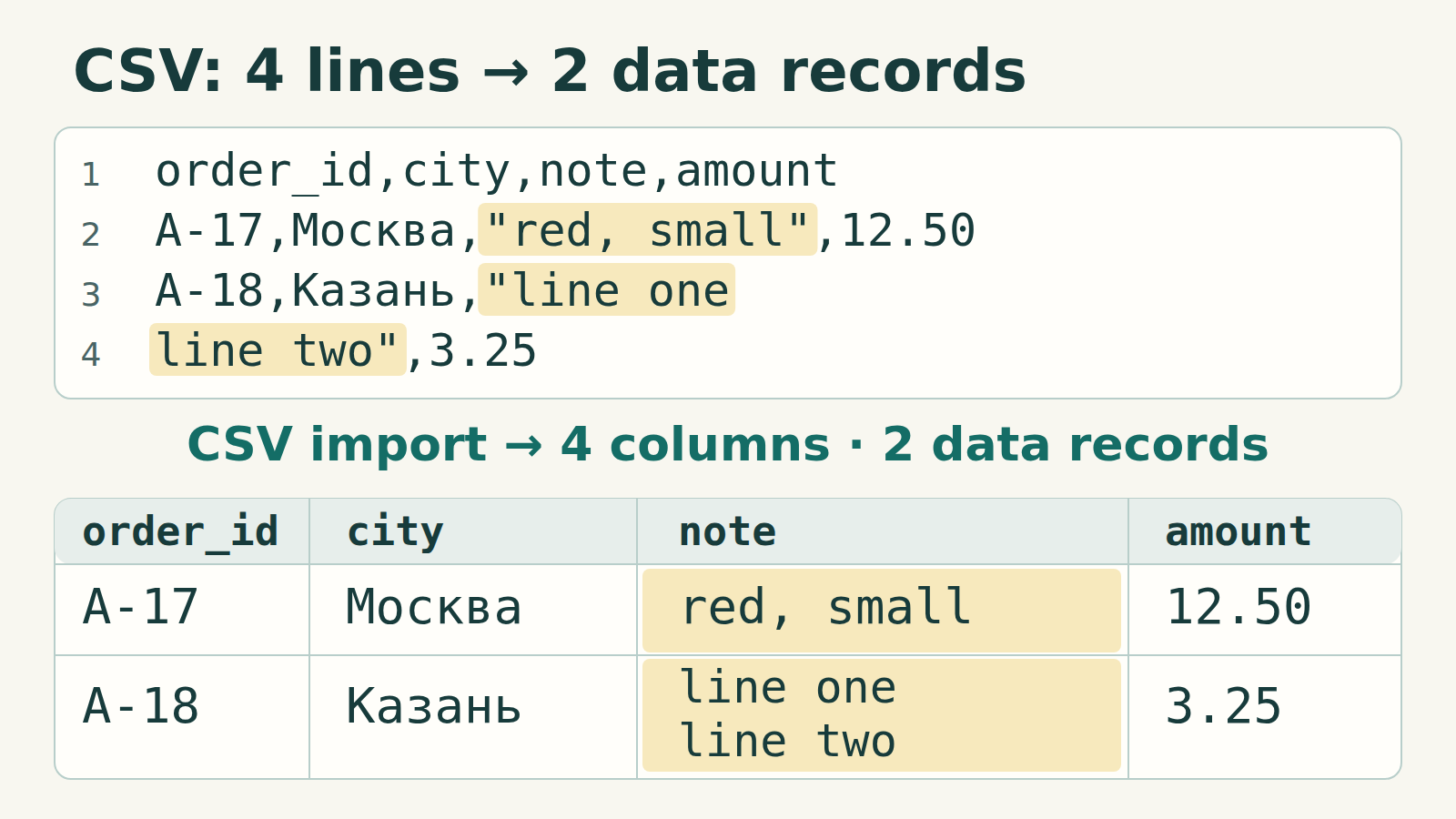
Create coru-comma-check.csv in a plain-text editor, save it as UTF-8, and copy the four physical lines below in order. The last two lines form one record: the quote opens before line one and closes after line two. Use straight double quotes.
coru-comma-check.csv
csv
order_id,city,note,amount
A-17,Москва,"red, small",12.50
A-18,Казань,"line one
line two",3.25
Expected result for file A
With comma as the delimiter, expect four columns and two data records. The first note must be red, small in one cell. The second note must contain line one and line two in the same cell, separated by a line break. The cities must be exactly Москва and Казань.
If the note splits into another row, edit the Source step. In the documented Line breaks dropdown, Ignore quoted line breaks keeps that break inside the value; Apply all line breaks can create an extra row. Confirm the two-record result. The word “ignore” here concerns record splitting, not deleting the note’s line break.
For amount, these sample values use a decimal point: a numeric conversion using English (United States) should give 12.50 and 3.25, totaling 15.75. Cell formatting may display fewer decimal places.
Check file B: semicolons with decimal commas
Save this separate example as coru-semicolon-check.csv in UTF-8. Choose semicolon as the delimiter. Commas inside amount are decimal punctuation; the comma in red, small is ordinary note text.
coru-semicolon-check.csv
csv
order_id;city;note;amount
A-17;Москва;red, small;12,50
A-18;Казань;plain;3,25
Convert numbers using the source locale
File B should also have four columns and two data records. Before converting amount, the two field values must be 12,50 and 3,25. In Power Query, right-click the amount heading → Change Type → Using Locale. Choose Decimal Number and a matching locale: Russian (Russia) fits this example. For another export, use its actual number and date conventions.
After conversion, check that the first amount is twelve and a half, not twelve hundred and fifty, and that the total is 15.75 (or 15,75 in a comma-decimal display). Readable columns alone do not establish correct numeric values. The separator between columns and the decimal separator serve different purposes.
Avoid repairs that change the content
Do not replace every comma with a semicolon: in file A, that changes the note from red, small to red; small. Replacing every comma with a point in file B changes that note to red. small. A CSV-aware import respects field boundaries and quotes.
A UTF-8 BOM helps Excel recognize UTF-8 during ordinary opening, according to Microsoft. It does not choose the delimiter or the numeric locale. Explicit import also works for UTF-8 files without a BOM.
Changing the Windows list separator affects other applications. Set the delimiter for this import first. If the original bytes have already been replaced with literal question marks where letters belonged, changing File Origin cannot reconstruct those letters; obtain an intact export.
Finish with an acceptance check
Compare the row count and several exact values with the source, including punctuation, non-English names and the smallest fractional amount. Save the working workbook as .xlsx. If another system needs CSV, export to a new filename and check that file’s delimiter, encoding and values again.
Our local Python checks confirmed both examples have four fields and two data records, preserved the quoted comma and newline, reproduced the wrong Cyrillic decoding, and obtained 15.75 from the explicitly converted amounts. These checks validate the sample bytes and expected results; they do not measure Excel UI behavior or reader outcomes.