Practical spreadsheets and data
Excel will not sum CSV numbers: convert text with the right separators
Check the cell type, preserve the original text, and convert amounts using the source locale. Verify individual values and numeric row count before trusting SUM.
Check whether the amount is really a number
A CSV can look correct while its amounts are stored as text. SUM over cell references ignores text, so a total can be zero or silently omit some rows. In an empty cell, enter =ISNUMBER(B2) for one suspect amount. TRUE means a numeric value; FALSE means it is not a number. Test several rows. Alignment and a Number format are not sufficient checks.
This guide uses desktop Excel for Microsoft 365 or Excel 2024 on Windows. Menu labels vary by build. Keep the original CSV unchanged and work in a copy of the workbook. If every amount is already numeric, check the formula range and calculation settings instead of converting the column again.
Decide what the source punctuation means
Open the original CSV in a plain-text editor. Confirm the decimal and thousands separators with the exporter or a known record. The text 1,234 could mean one point two three four or one thousand two hundred thirty-four. Neither a successful conversion nor a plausible total can choose the intended meaning for you.
Convert amounts and quantities only. Keep product codes, account references and other identifiers as Text, including 00101. Excel numbers have 15 significant digits of precision; an identifier with more digits can lose information when converted. Return to the intact source if an earlier conversion has already changed it.
Use this four-row check before converting a larger file
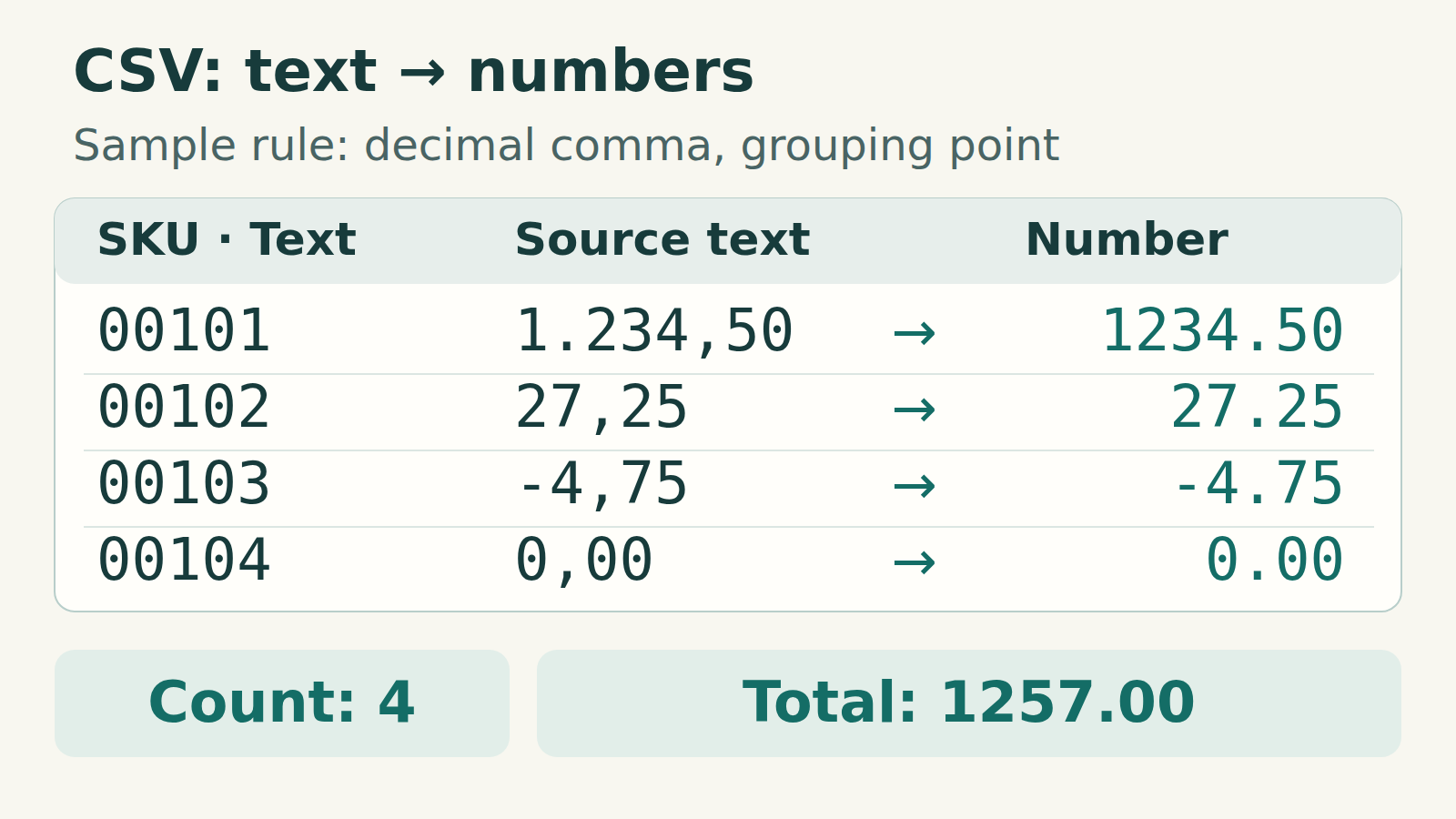
Save the following original example as coru-number-check.csv in UTF-8. Its declared convention is German (Germany): comma for decimals and point for thousands. The semicolon separates columns. The four amounts include a grouped number, a fraction, a negative adjustment and a real zero.
coru-number-check.csv
csv
sku;amount
00101;1.234,50
00102;27,25
00103;-4,75
00104;0,00
Route A: import the CSV with an explicit locale
- In a blank workbook, choose Data → From Text/CSV. Select the check file, UTF-8 file origin and Semicolon delimiter. Confirm two columns. Where available, disable automatic data type detection and choose Transform Data.
- In this new query, remove an automatic Changed Type step from Applied Steps if present, before making your own conversions. If needed, use the first row as headers. Confirm that amount still contains the original strings and that sku retains its zeros. Keep sku as Text.
- Right-click amount → Change Type → Using Locale. Choose Decimal Number and German (Germany) for this sample. For your own file, use the source convention, even if your Excel interface is in another language.
- Inspect every sample value against the check table below. Leave errors visible and investigate them; do not remove rows to make the conversion finish. Choose Close & Load, placing this example at A1 of a new worksheet so amount occupies B2:B5.
Expected values after conversion
text
sku      amount (decimal point)
00101    1234.50
00102      27.25
00103      -4.75
00104       0.00
Total    1257.00
These are expected numeric values, shown with a decimal point and two decimal places for comparison. Your worksheet may display a comma or fewer trailing zeros.
Route B: convert intact text already in a worksheet
Use this alternative when the source text is still intact in B2:B5. Keep that column and enter the following formula in C2, then fill down through C5. Use it only for the known, nonempty amount rows in this sample.
English function name, comma between arguments
excel
=NUMBERVALUE(B2,",",".")
Keep the source separators inside the quotation marks
The second argument declares a decimal comma; the third declares a grouping point. If your formula editor uses semicolons between arguments, enter =NUMBERVALUE(B2;",";".") instead. Do not change the quoted characters to match your preferred display. Function names follow the Excel interface language; Russian Excel uses ЧЗНАЧ.
For source text such as 1,234.50, swap the quoted separator arguments: decimal point first, comma second. Do not apply one rule to mixed source conventions. NUMBERVALUE converts empty text to zero, so keep missing amounts separate from genuine zeros. If a formula fails, inspect the original characters and convention before changing them.
Check values, count and total before replacing anything
- For Route A, =COUNT(B2:B5) must be 4 and =SUM(B2:B5) must be 1257. For Route B, use =COUNT(C2:C5) and =SUM(C2:C5) with the same expected results. A real zero counts as a number.
- Compare all four values with the check table, including the fractional part of 1234.50 and the minus sign in -4.75. The sku values must remain the exact five-character strings. A count of 4 alone does not prove the numbers were interpreted correctly.
- For a real export, reconcile the number of amount rows with the source, investigate every blank or error, and compare known small, large, negative and final-row values. Check a source total when one is available; a matching total alone can hide offsetting errors.
Finish without overwriting your evidence
For the worksheet route, keep the original text until the checks pass. If you need fixed values, copy the converted cells and use Paste Special → Values in a separate result column. Save the working file as .xlsx.
If unexpected characters remain, inspect them in the amount column only. A currency symbol or a nonbreaking space may need a source-specific cleanup; changing punctuation across the whole file can also alter identifiers and notes. If conventions are mixed and cannot be traced to their source, keep those rows unresolved rather than guessing.
We checked current Microsoft documentation on 21 October 2026. Local Python checks verify this CSV, the declared conversions, row controls and exact total. They do not run Excel or prove how a particular build imports your file.