Excel SUM includes hidden rows? Choose SUBTOTAL 9 or 109
A filter and the Hide command can make rows disappear, but they affect totals differently. Choose which rows belong in the answer, then check one small example before changing your formula.
Choose what the total should include
You filter a list, but the total still includes the rows that disappeared. Check the formula first: SUM adds the numbers in its range regardless of row visibility. For a vertical list, SUBTOTAL can respond to the filter and, with the right first argument, manual hiding.
- All rows in B2:B7: =SUM(B2:B7).
- Rows passing the filter, including any manually hidden rows: =SUBTOTAL(9,B2:B7).
- Rows passing the filter and not manually hidden: =SUBTOTAL(109,B2:B7).
One list, three valid answers
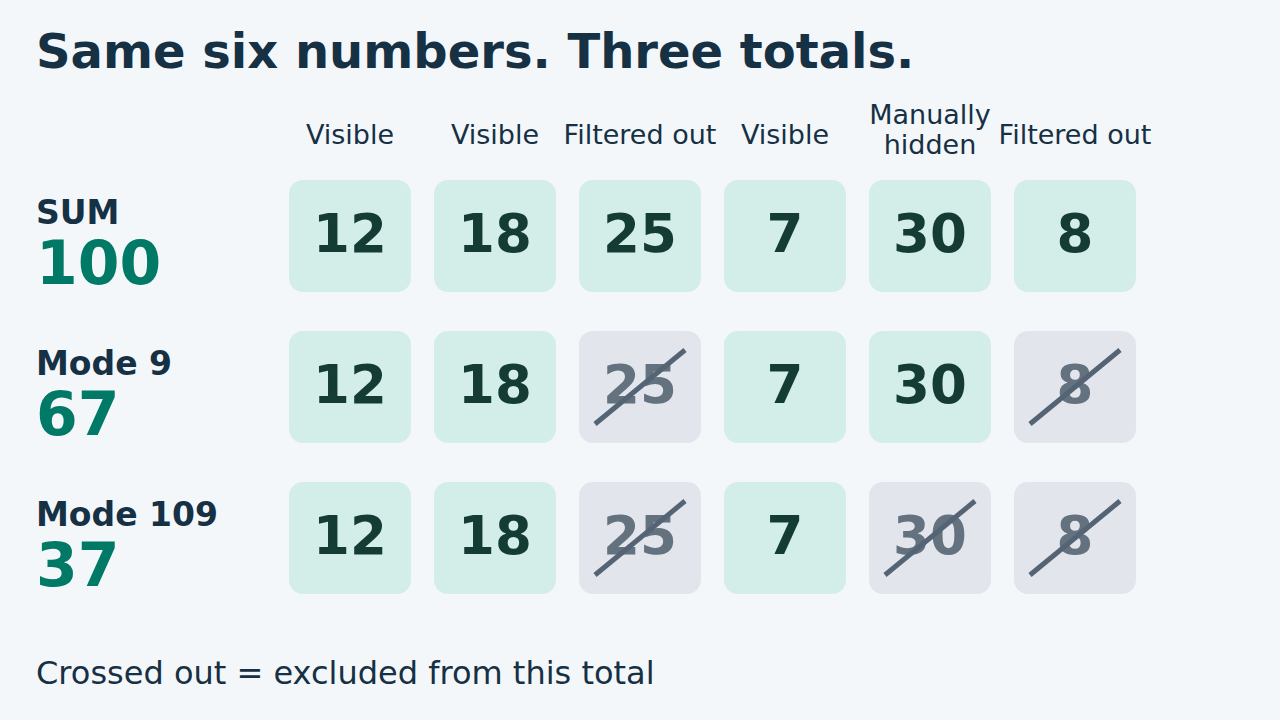
This invented example uses six amounts that add to 100. The filter will exclude C and F, removing 25 + 8 = 33. Then you will manually hide E, removing another 30 from view. The remaining visible amounts are 12, 18 and 7.
Paste this sample into A1
text
Item	Amount	Group
A	12	Keep
B	18	Keep
C	25	Remove
D	7	Keep
E	30	Keep
F	8	Remove
The tab-separated sample fills A1:C7. Amounts occupy B2:B7.
Set up the comparison
On the same worksheet, put the following formulas in B9, B10 and B11, outside the data range. These use English function names and commas; use the function language and argument separator accepted by your Excel.
B9: all six amounts
excel
=SUM(B2:B7)Expected result: 100, including filtered-out and manually hidden rows.
B10: follow the filter
excel
=SUBTOTAL(9,B2:B7)Expected result after the filter: 67. Hiding row 6 manually leaves this at 67.
B11: exclude both kinds of hidden rows
excel
=SUBTOTAL(109,B2:B7)Expected result after the filter and manual hiding: 37.
Apply the filter, then hide one row
- Select A1:C7 and choose Data > Filter. Open the Group header arrow, leave only Keep selected, and confirm. The summary formulas remain below the filter range.
- Check the three results: 100, 67, 67. The two SUBTOTAL formulas agree because the filter excluded the same two amounts.
- Right-click row number 6 and choose Hide. This hides the entire worksheet row containing E and 30. Now the results should be 100, 67, 37.
- To check the difference, unhide row 6 while keeping the filter applied. Both SUBTOTAL results should return to 67.
Expected totals at each step
text
State                  SUM   9   109
All rows shown         100  100  100
Group = Keep           100   67   67
Then hide row 6         100   67   37
Unhide row 6            100   67   67
Coru checked the arithmetic against Microsoft’s documented rules. These are expected results, not a recorded Excel execution.
If your result still differs
- Check the range in the formula bar: it must be B2:B7 in this sample, without the summary cell itself.
- Check whether the missing row was filtered out or hidden manually. The words “hidden rows” alone do not distinguish these actions.
- This rule concerns rows in a vertical range. Hiding a column does not remove it from =SUBTOTAL(109,B2:G2).
- SUBTOTAL also skips nested SUBTOTAL formulas. It does not make arbitrary summary numbers safe to include. On a separate sheet, put 12 in B2, 18 in B3 and =SUBTOTAL(9,B2:B3) in B4: =SUBTOTAL(9,B2:B4) returns 30, while =SUM(B2:B4) returns 60. A typed 30 or a SUM formula in B4 is not that nested SUBTOTAL.
Already using an Excel table?
For an actual Excel table, enable Total Row on its table design tab, then choose Sum from the amount column’s total menu. Microsoft’s example creates SUBTOTAL with 109 and a structured column reference. Inspect the resulting formula to confirm which rule your total uses.
Check which rows count
Choose an answer, or open the explanations below.
Answers and explanations
- 37: 37 is the result for 109. With 9, the manually hidden 30 still belongs in the total.
- 67: Yes: 12 + 18 + 7 + 30 = 67. The filter removes 25 and 8; manual hiding does not remove 30 for function number 9.
- 100: 100 includes all six amounts. Both 9 and 109 exclude rows removed by the filter.