Excel total differs from the rounded rows? Choose when to round
If the visible rows add up to 3.69 but Excel shows 3.70, check the hidden decimal places. Formatting, rounding every row and rounding the final sum do different jobs.
Why 1.23 + 1.23 + 1.23 can show a total of 3.70
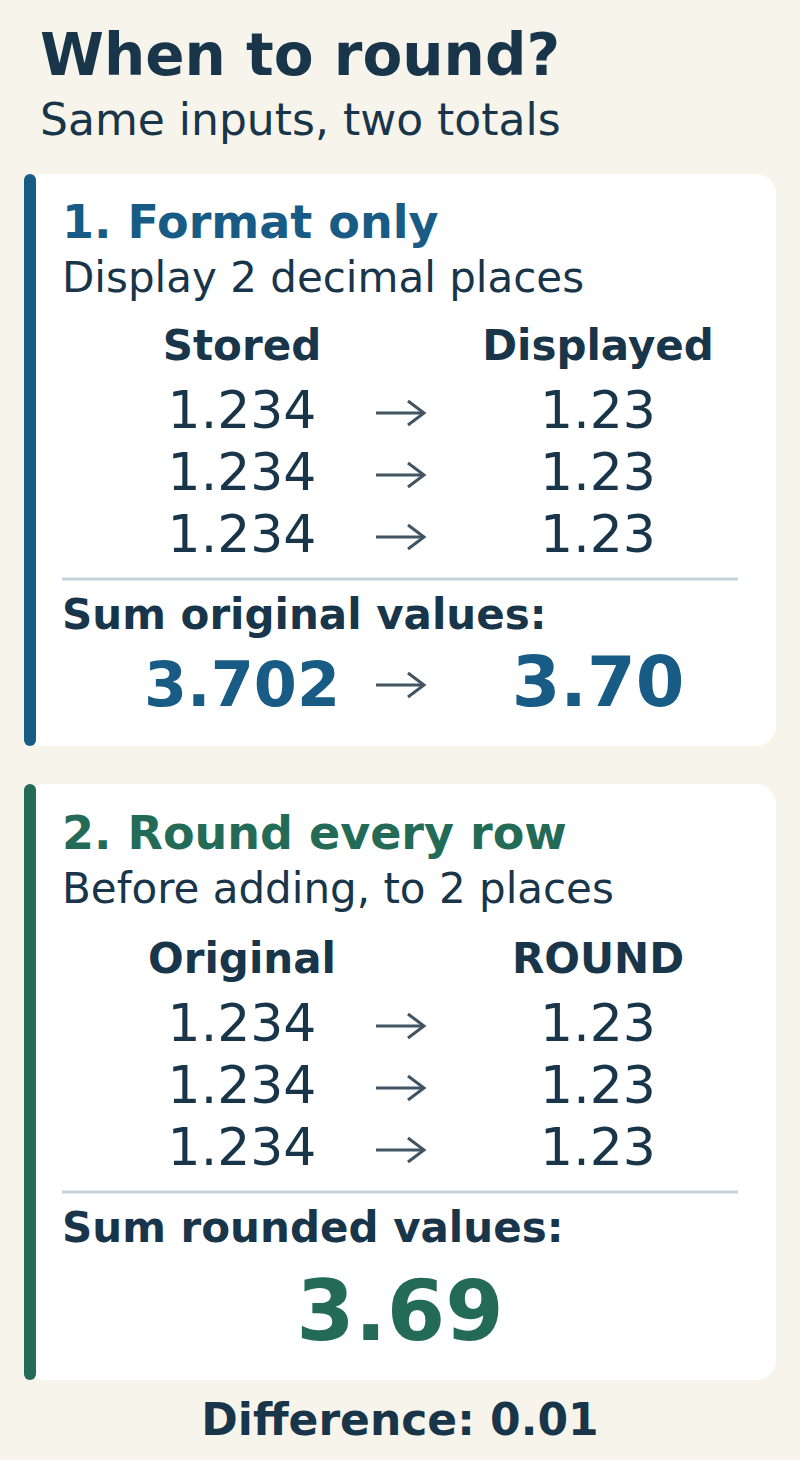
An ordinary number format changes what you see, not the values Excel uses in calculations. If A2, A3 and A4 each contain 1.234, a two-decimal format shows 1.23 in every row. SUM still adds the underlying values: 1.234 + 1.234 + 1.234 = 3.702. Formatted to two decimal places, that total appears as 3.70.
Adding the three displayed numbers gives 1.23 + 1.23 + 1.23 = 3.69. The difference is 0.01 because rounding happened at different stages. This example uses invented numbers and ordinary number formatting, with “Set precision as displayed” turned off.
Reproduce the difference on a blank sheet
Enter the number 1.234 into each of A2, A3 and A4. Use your normal decimal separator; in a decimal-comma setup, enter 1,234. Leave A5 for the total. Select A2:A5 and apply a Number format with two decimal places. Enter the formula below in A5.
The three input cells should show 1.23 and the total should show 3.70. Temporarily increase the displayed decimal places to three: the rows reveal 1.234 and the total reveals 3.702. Then return the display to two places.
A5: sum the original values
excel
=SUM(A2:A4)Expected value: 3.702; displayed to two decimal places: 3.70. Russian function name: СУММ.
If the total must equal the rounded rows
Keep column A as the original data. In B2, enter the next formula and copy it down through B4. Each helper cell returns 1.23. Then put =SUM(B2:B4) in B5. The helper-column total is 3.69.
Use this method when your reporting rule says to round every line to two decimal places before adding. The helper column makes that choice visible and leaves the original values available. Format column B to two decimal places for a consistent display.
B2: round one row, then copy down
excel
=ROUND(A2,2)Copy B2 to B3:B4, then sum B2:B4 in B5. With Russian function names and a semicolon separator: =ОКРУГЛ(A2;2).
If only the final total should be rounded
Keep the original values in A2:A4. Put the next formula in C5, outside the input range. It adds the original values first and rounds that total once: 3.702 becomes 3.70 when displayed with two decimal places.
This result and the two-decimal display of A5 look the same, but they differ as inputs to later calculations: A5 still contains the result 3.702; C5 returns the rounded result 3.7. A trailing zero is a display choice, so format C5 to show two places if you need 3.70.
C5: add first, round once
excel
=ROUND(SUM(A2:A4),2)With Russian function names and a semicolon separator: =ОКРУГЛ(СУММ(A2:A4);2). Function names and argument separators depend on your Excel language and regional settings.
A quick check that rounding can go either way
Change all three original values to 1.236. Each displayed row becomes 1.24. Adding the original values gives 3.708, displayed as 3.71. Rounding each row first gives 1.24 + 1.24 + 1.24 = 3.72.
The row-rounded total is now 0.01 higher, whereas it was 0.01 lower in the first example. There is no reliable “add one cent” repair. Choose the rounding stage required by the calculation and apply it consistently.
Avoid changing the whole workbook to fix one total
Excel also has a “Set precision as displayed” option. Unlike ordinary formatting, it makes stored numbers match their displayed precision. Microsoft warns that the lost precision cannot be restored simply by turning the option off; the original values may be needed again.
For a total that must use rounded rows, a separate ROUND column keeps the change explicit. Keep a separate copy of the original workbook before experimenting with precision settings. If precision has already been discarded, showing more decimal places will not recover the original digits.
If your sheet still gives a different result
- Check the range: the examples use exactly A2:A4. A5 is the total and must not be included in its own sum.
- Check that the three inputs are numbers. =COUNT(A2:A4) should return 3 for this example. A numeric-looking text cell can be skipped by SUM over a range; check the import and decimal separator.
- Check the formula, not only its formatting. Increasing decimal places shows more of the current result; it cannot undo ROUND inside the formula or recover previously discarded precision.
- Check the rule: sum original values and round once, or round each row and then sum. Write down which one the total represents. ROUND(SUM(...),2) does not make a total equal to separately rounded rows.